
Wishlist
The saved item that comes back in stock sells itself.
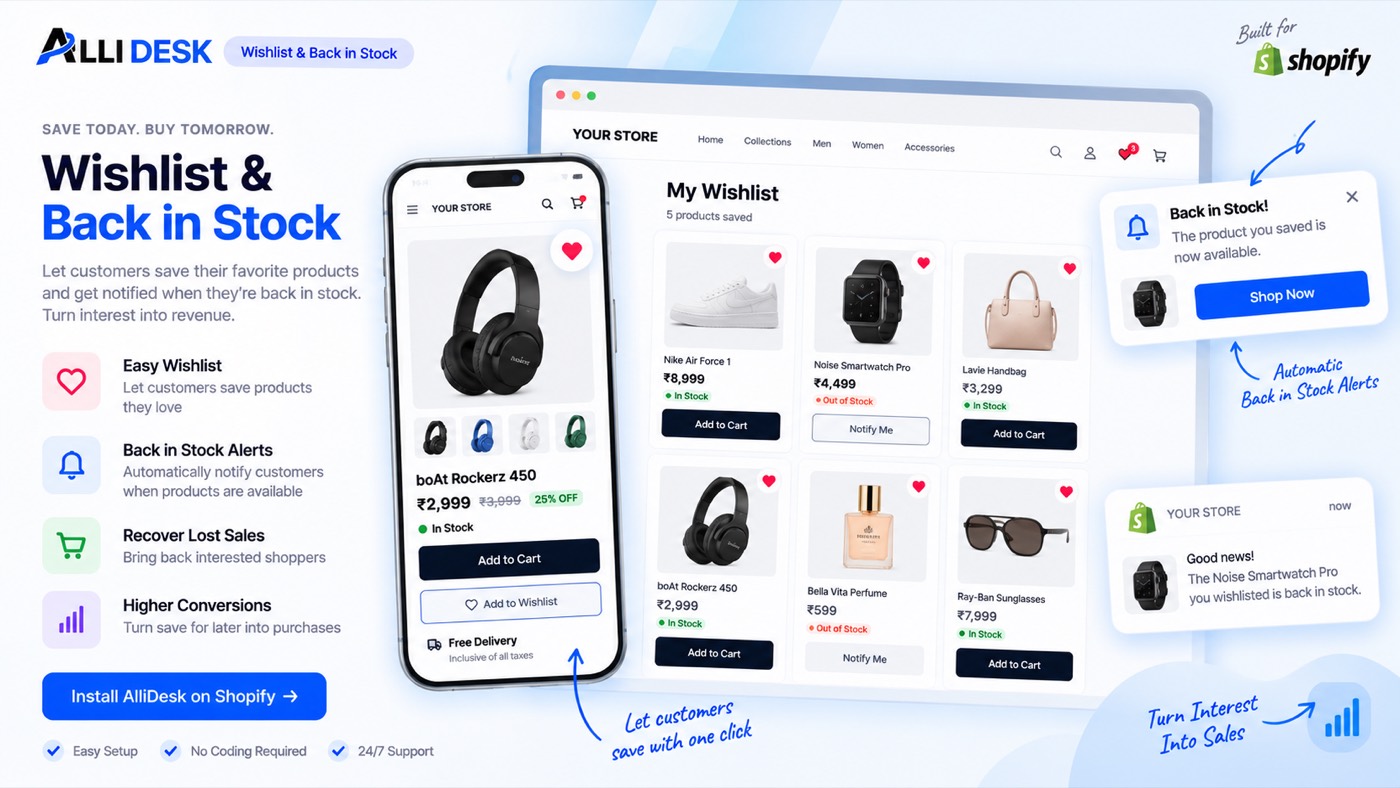
Save for later, with reminders when a saved item drops in price or is back in stock.
Switching it on
- Switch the module on with the toggle at the top of this page.
- Turn the AlliDesk app embed on in your theme, which puts the heart on your product and collection cards.
- Open the design settings to choose where the heart sits and how it looks.
- Open a product on your own storefront and save it once, to see it land in the account pages.
It is live when: The module is on and the app embed is running, so the heart appears on your storefront.
What your customer sees
A "Wishlist" tab in their account on your own domain, in your branding — no second login, no app that looks like somebody else's.
Everything on the storefront is a theme block or the app embed, so there is no theme code to edit and nothing to undo if you switch the module off.
Questions merchants ask
How do I get the heart onto my products?
Switch Wishlist on and turn the app embed on in your theme. The heart appears on product cards and product pages; where it sits and how it looks is in the wishlist design settings.
Do guests get a wishlist?
Yes, kept in their browser. When they sign in, it merges into their account.
Who tells a customer their saved item is back?
Wishlist does. Back-in-stock and price-drop reminders go to customers who saved the item; you choose which of the two are on and after how many days a reminder may repeat.
Works with
Every module shares the same customer, so these need no setting up twice.