
GST invoice
A proper tax invoice on every order, automatically.
GST-compliant invoices and credit notes for every order: HSN and rates per product, numbered series, PDF templates, email and WhatsApp delivery, GSTR-1 and 3B reports.
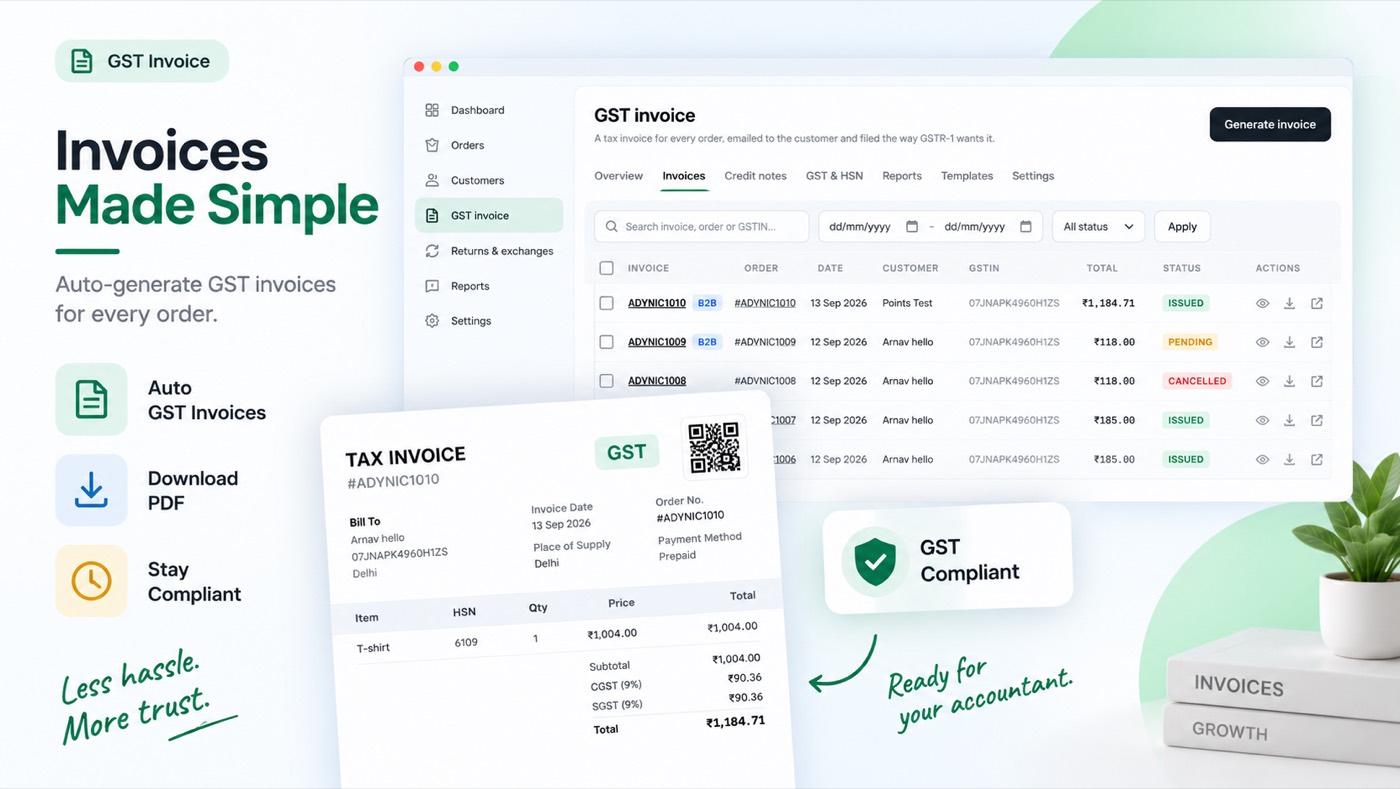
Switching it on
- Switch the module on with the toggle at the top of this page.
- Open Settings → Company and fill in your legal name, address and GSTIN. Nothing can be issued without it.
- Open GST & HSN and set the HSN code and rate for what you sell.
- Open Templates to put your logo and signature on the invoice, then place a test order to see one issued.
It is live when: The module is on and your company details, including your GSTIN, are saved.
What your customer sees
A "Invoices" tab in their account on your own domain, in your branding — no second login, no app that looks like somebody else's.
Everything on the storefront is a theme block or the app embed, so there is no theme code to edit and nothing to undo if you switch the module off.
Questions merchants ask
What do I need before invoices can be issued?
Your company details with a GSTIN, under GST → Settings → Company. Nothing can be issued without them. Add a second GSTIN if you ship from another state.
When is an invoice issued?
On every order, as soon as it is placed. You can switch it to issue when the order is paid instead, which makes COD wait for the paid mark.
Where do customers get their invoice?
In their account under Invoices, and by email when GST invoice emails are on in Settings, with the PDF attached if you choose.
What about HSN codes and rates?
Set a default rate under GST & HSN and override it for the products that differ. An HSN code is required on a proper tax invoice.
Can I issue a credit note?
Yes. A refund or a return can raise a credit note against the original invoice, and it appears in your filing statements.
Works with
Every module shares the same customer, so these need no setting up twice.